
Sign in to Microsoft on a Windows Computer with Your iPhone Passkey
Use these steps to sign in to your North Star Microsoft account on a Windows computer using the passkey saved in Microsoft Authenticator on your iPhone.
Before you begin
- Your Microsoft passkey must already be set up on your iPhone.
- Your iPhone must be running iOS 17 or later.
- Bluetooth must be turned on on both the Windows computer and the iPhone.
- Both devices must have an internet connection.
- Keep your iPhone near the computer while signing in.
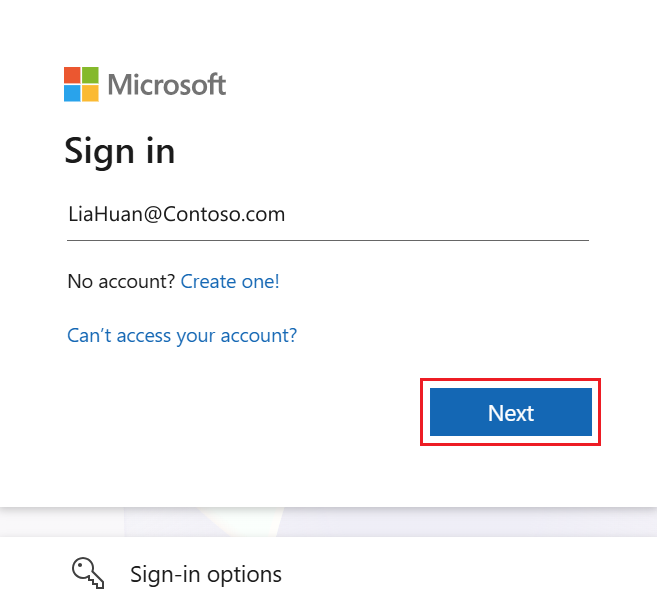
Step 1 — Enter your North Star email address
At the Microsoft sign-in screen:
- Enter your North Star email address.
- Select Next.
Example: firstname.lastname@gonorthstar.group
Step 2 — Select Sign-in options
Instead of entering a password, select:
Sign-in options
Then select:
Face, fingerprint, PIN or security key

Step 3 — Choose your iPhone
Windows will ask where your passkey is located.
Select:
iPhone, iPad, or Android device

Step 4 — Scan the QR code with your iPhone
A QR code will appear on the Windows computer.

- Unlock your iPhone.
- Open the normal Camera app on your iPhone.
- Point the camera at the QR code on the computer.
- Tap the notification that appears on your iPhone.
Step 5 — Tap Sign in with passkey on your iPhone
After scanning the QR code, your iPhone will recognize that the computer is requesting a passkey.
Tap:
Sign in with passkey
Your iPhone and computer will securely connect using Bluetooth.
Step 6 — Approve the passkey on your iPhone
Your iPhone will ask you to confirm your identity.
Approve the sign-in using whichever option your iPhone normally uses:
- Face ID
- Touch ID
- Your iPhone device PIN
This unlocks the passkey stored on your phone. Your Microsoft password is not required.
Step 7 — Wait for the computer to complete the sign-in
After you approve the passkey on your iPhone, Windows should display that the device has connected.

Microsoft will then automatically finish signing you into your North Star account.
No Microsoft password was required.
Troubleshooting — QR code does not appear
If you do not see the QR code:
- Make sure Bluetooth is turned on on the computer.
- Make sure Bluetooth is turned on on the iPhone.
- Make sure both devices are connected to the internet.
- Keep the iPhone close to the computer.
- Return to Sign-in options.
- Select Face, fingerprint, PIN or security key.
- Select iPhone, iPad, or Android device.
Troubleshooting — Microsoft asks for a password
You do not need to use your password when signing in with your passkey.
Select:
Sign-in options → Face, fingerprint, PIN or security key
Microsoft Learn — Sign in with a synced passkey
Microsoft Learn — Sign in with passkeys in Microsoft Authenticator
Comments
0 comments
Please sign in to leave a comment.